Getting started

From download to your first sorted files

Important install and setup guide. Read it fully.

1

Download the app

Releases live on GitHub.

Get the latest release →
From the release at the top of the list, download the file named Personal.AI.OS.Desktop_<version>_aarch64.dmg: the one ending .dmg, with a version number in the middle. The other files beside it are for the app's own updater, not for you. Open it and drag Personal AI OS Desktop into Applications like any other Mac app.
What you need before you start: a Mac, with Claude installed locally and signed in on your own Claude subscription, and Gmail and Google Calendar connected to it (plus Granola, optional, if you use it for meeting notes). Step 3 below is where the connectors get switched on.

Which Claude plan: the $100/month Max plan is enough. The scheduled passes work for hours a day on your behalf, which is real usage against your account. The $20 Pro plan will run, but it is likely to be tight, and hitting a limit mid-pass means a pass stops partway.
2

Get past the Gatekeeper warning

This is perfectly normal and it happens once. Apple only vouches for apps that come through the App Store, so every app from an independent developer gets stopped the first time you open it. This is not about this app, and nothing is wrong with your download.

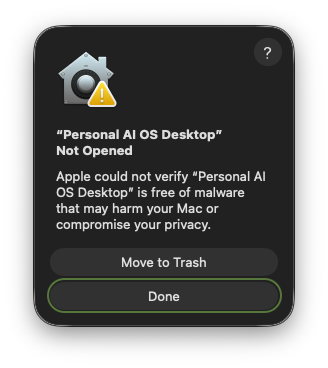
macOS dialog titled Personal AI OS Desktop Not Opened, with Move to Trash and Done buttons
Double-click the app: macOS blocks it
You'll see “Personal AI OS Desktop” Not Opened. Click Done (not Move to Trash) to dismiss it.
Why this shows up: the app doesn't come from the App Store, and Apple is deliberately strict about that. It has no opinion about this app either way. It just wants you to say yes to an outside developer once, by hand. Every Mac app that isn't in the store works this way.
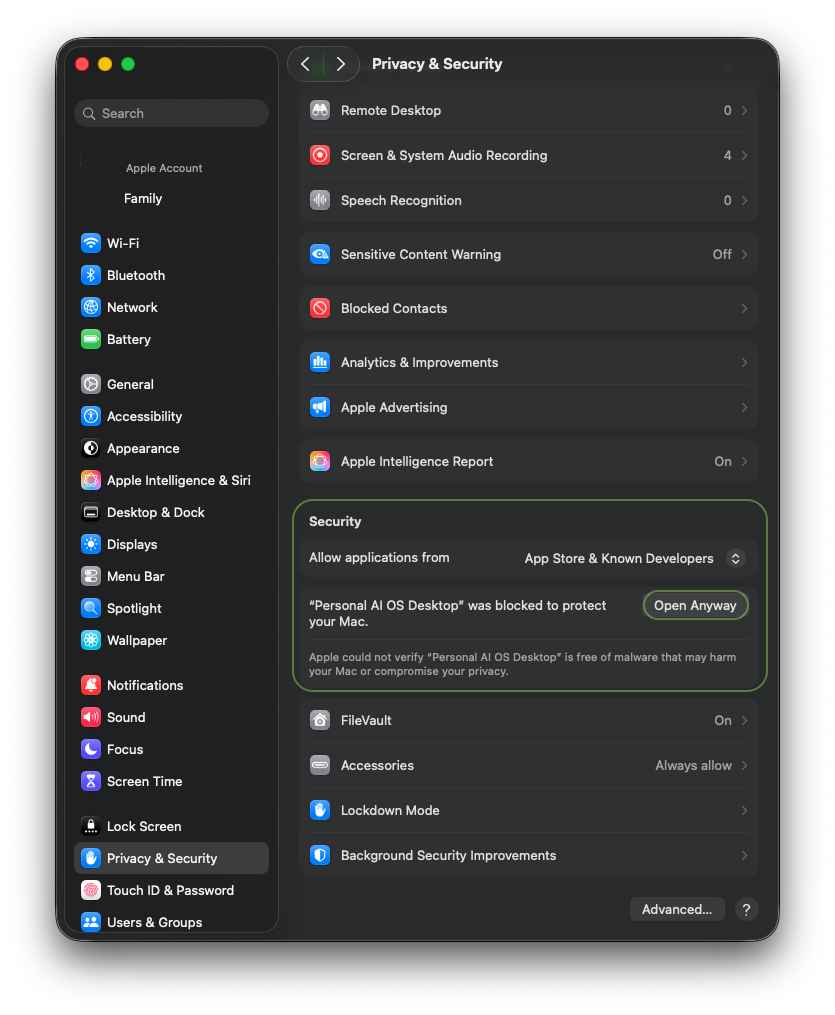
macOS System Settings Privacy and Security pane, Security section, with an Open Anyway button next to the blocked-app notice
Click to zoom
Open System Settings → Privacy & Security
Scroll to the Security section near the bottom. You'll see a line: “Personal AI OS Desktop” was blocked to protect your Mac. Click Open Anyway.
This button only appears after step 1's attempt; if you don't see it, go double-click the app again first.
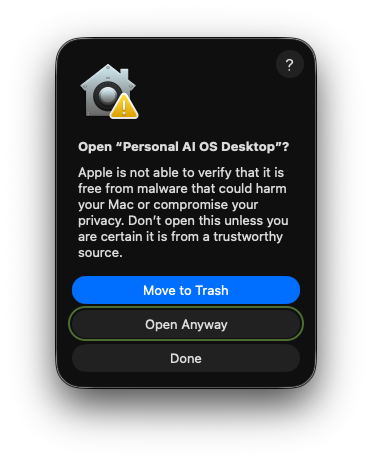
macOS confirmation dialog: Open Personal AI OS Desktop, with Move to Trash, Open Anyway, and Done buttons
Confirm once more, then you're in
A final dialog asks you to confirm. Click Open Anyway. The app launches, and from here on it opens normally, like anything else in your Dock.
3

Walk through the setup wizard

Six short screens, once, the first time the app opens. Nothing here can be undone by accident.

What it asks, in order
Your name, so it knows what to call you.
Your Hub folder, the folder on your Mac where your files, projects and records will live. Pick or create one, put your files in it first; it stays fully local.
Watched folders, the folders its hourly pass sweeps for new material, an intake folder you drop things into, say. Add none and nothing outside your Hub is swept.
Location, optional and skippable, used only for the weather and daylight on your dashboard.
Gmail & Calendar, turned on through the Claude app's own Settings → Connectors, not typed in here. Continue stays off until both show connected.
Granola, optional, in the same panel and turned on the same way. Connect it and finished meetings are pulled in and filed on their own. Without it, meetings only arrive as transcript files you drop into a watched folder, so setup never waits on it.
Review, a summary of everything above, then one button: Set up Personal AI OS.
Why the connector step cannot be skipped: the app reads mail and calendar through Claude's own account-level Connectors rather than a password you'd hand it, so turning them on once is the only way in, the same way clicking past Gatekeeper above is the only way in.
One more setting, inside the Gmail connector: open its Tool permissions and set Create draft email and Update draft email to Always allow. Both ship as “Needs approval”, and an overnight run has nobody to ask, so replies get written and never reach your Drafts. Nothing else needs changing: sending, forwarding and deleting stay blocked whatever you set here.
Fill the Hub folder before you set up, and don't tidy it. A folder with real work already in it is what the first sort is for: loose files, cryptic names, scans, duplicates and years of drift are the job, not a problem to fix first. Start with tens of files, up to a few hundred, rather than your whole drive: a first sort too big to read is one you cannot judge, and judging it is how you learn whether to trust the next one. You can point it at more afterwards.
What it does with each kind of file. It reads Word files, PDFs, notes and CSVs, and pulls a spreadsheet in as a table. It cannot read PowerPoint, Keynote, Pages or Numbers files, the old .doc and .xls formats, photos, video, music, zips or apps, so those are filed on their name and date instead. Everything already in your Hub folder gets sorted into it whatever it is; from a watched folder afterwards, only what looks relevant to your projects crosses over.
File types, one by one
What you haveCan it read it?The file itself
Notes, Markdown, CSVYesComes in
Word, PDFYesComes in
ExcelYes, and the first sheet becomes a tableThe workbook stays put
A PDF that is only a scan, never run through OCRNo text in it to findComes in
PowerPoint, Keynote, Pages, Numbers, old .doc and .xlsNoStays put
Photos, video, music, zip files, appsNoStays put
Point it at files you already back up. The sensible start with any new tool: pick a folder that's part of your normal backup, or copy one somewhere new and work from the copy. Nothing was lost in our own testing and your files stay plain and readable throughout, though the app ships with no warranty and we carry no liability.
How long the first sort takes: about 5 to 10 minutes for 50 files, and it scales well from there, so 500 to 1,000 files usually lands inside an hour, often nearer 30 minutes depending on how complex they are. Most of the time goes on opening and reading, not moving, so a folder of scans takes longer than a folder of clearly-named documents. Start light anyway, watch the features work on a small set, then expand. Adding more later is easy.
Once it is set up, ask rather than move. Don't add, rename, move or delete anything inside the Hub by hand. Say what you want in the chat and it does the move, keeping every index and link in step. Do it yourself and the records still point at where the file used to be.
Adding files later. Drop them in a watched folder, the list in Settings → Watched folders. If it’s empty, nothing outside your Hub is read. Leave the app running and the hourly pass files whatever lands there. A newly added folder only picks up recent arrivals on its first sweep, so re-drop anything older.
4

Your first chat session finishes the setup

The wizard hands off straight into a chat, and you don't have to type the first message: it's already written, asking the app to get oriented and sort your Hub folder out.

It works through four stages, narrated in plain language rather than file names or tool calls:
1. Getting oriented, taking a look at what's in your folder.
2. Sorting files into projects.
3. Checking your calendar.
4. Wrapping up, here's what changed.
This runs once and takes a few minutes. Files only get filed into projects, nothing gets deleted. After it finishes, the app answers questions from your own material.
5

Session and Dashboard

Everything lives under Session and Dashboard, top left. Session is where you ask; Dashboard is where you see what's already moving. Click through the tour below, then read what each screen holds.

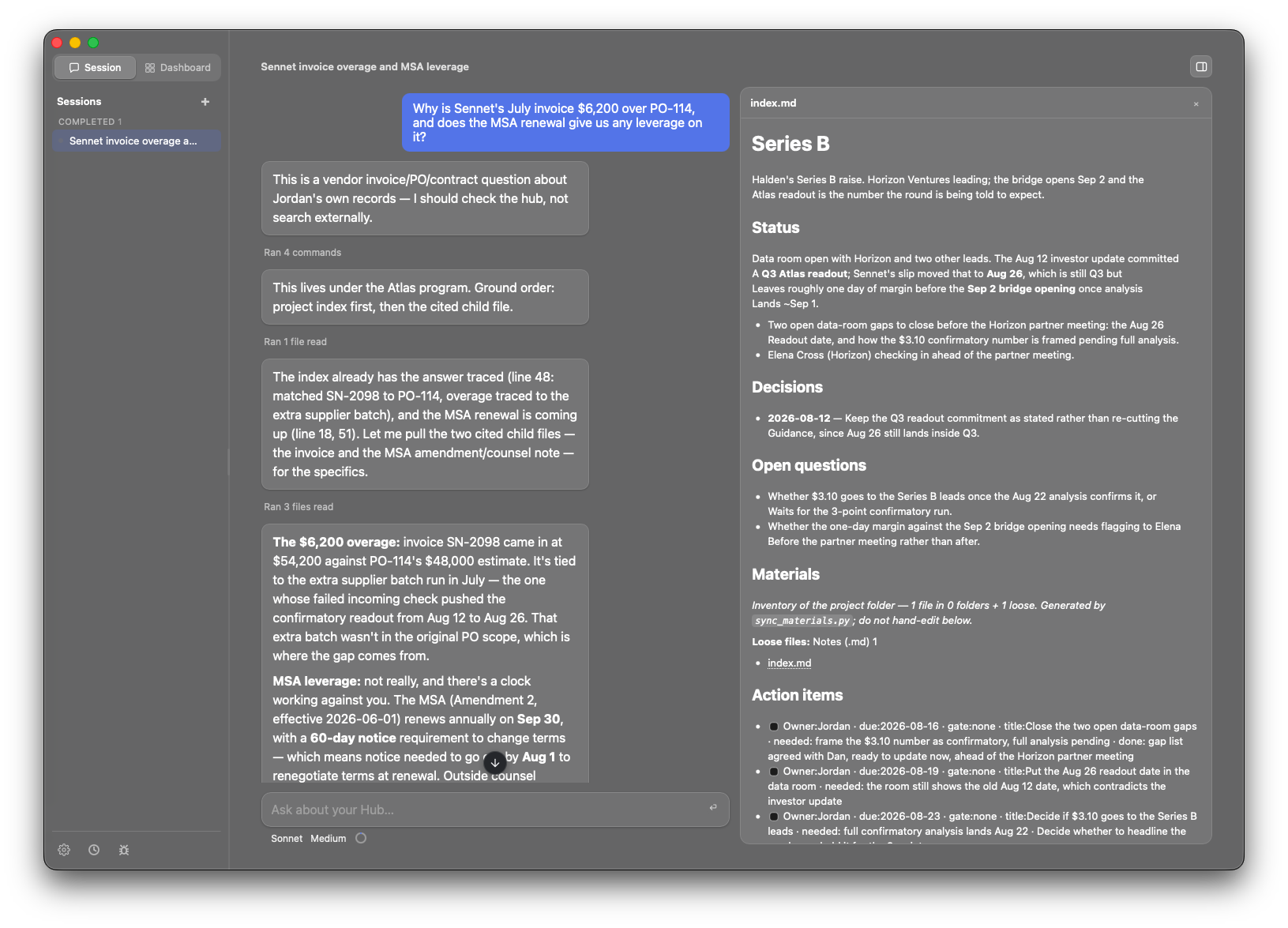
Session tab showing a chat conversation with the hub, a list of commands and files it read, and a right-hand panel with the cited source file open
Session

Ask it anything about your own records

Type a question in the box at the bottom: Ask about your Hub…, the way you'd ask a person who already read everything. The app answers from your own files, not the open internet:

  • It shows its work. Each step of the answer names what it just did: “Ran 4 commands,” “Ran 3 files read”, before it commits to a claim.
  • It cites the source. The right-hand panel opens the actual file it's quoting from, so you can check the line yourself.
  • On Sonnet, put the effort level on high, or use the default, currently Opus at low effort. That is what gives you good reasoning and proper file and project discovery.
  • Past questions are kept in the Sessions list on the left, so you can pick a thread back up.
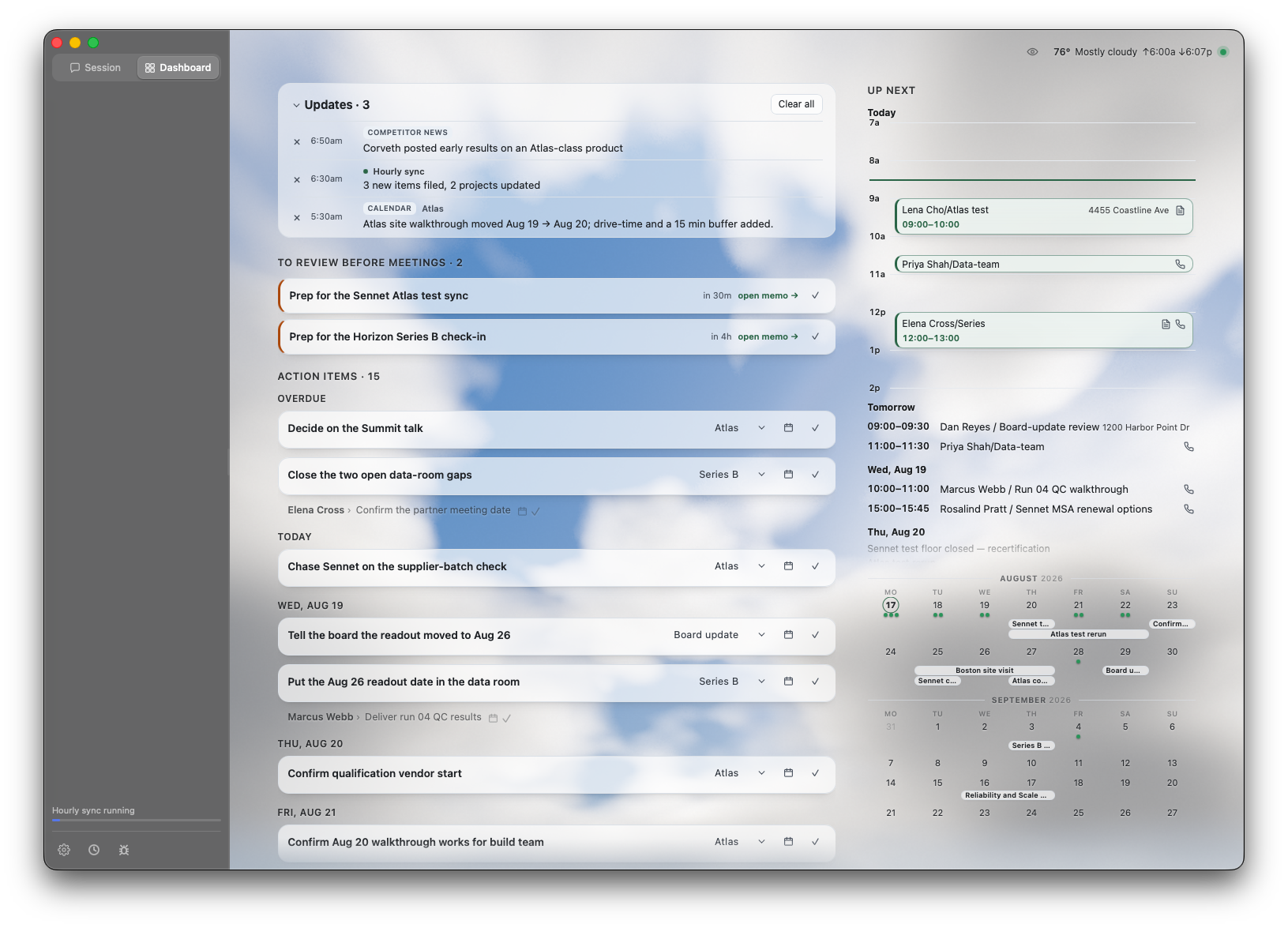
Dashboard tab showing an updates feed, a to-review-before-meetings list, action items grouped by date, and today's agenda on the right
Dashboard

One screen for what's moving and what's due

This is the standing view: open it first thing, without typing anything:

  • Updates at the top: new items filed, calendar changes, anything relevant that surfaced since you last looked. Dismiss what you've seen.
  • To review before meetings: a short prep memo for anything coming up soon.
  • Action items, grouped by Overdue, Today, and upcoming days, each tagged to the project it belongs to.
  • On the right: today's agenda and the month at a glance.
  • Bottom left: an “Hourly sync running” indicator while it's actively working, plus three icons: Settings, Scheduled routines, and Report a bug.
6

Three habits that decide how well this works

None of these are optional polish. Each one is a common way people end up with a worse version of the system than the one they installed.

Keep sessions short, and start new ones often
A session carries everything already said in it into every later question. A thread you have been adding to all week answers more slowly, drifts back toward whatever you were discussing earlier, and gets vaguer as it grows. One subject, one session. When you move to a different project or a different question, start a fresh one with the + at the top of the Sessions list, or press ⌘N. Many short threads beat one long one every time, and you lose nothing by splitting: the old sessions stay in the list, and the app answers from your files rather than from the conversation.
Take every update the moment it offers one
New versions download themselves in the background. When one is ready you get a Restart to update button. Press it right away. It is a few seconds of restart and nothing else: your files, your sessions and your settings all live on disk, not inside the app, so nothing is lost. If a scheduled pass happens to be running, the button says so and waits rather than cutting it off, so there is no bad moment to press it. Staying on an old version is how you end up living with a bug that was fixed weeks ago, or with behaviour this page no longer describes.
Leave the Mac on and awake overnight
Most of the work happens while you are not there. An hourly pass keeps up with the day, and the long nightly pass is the one that does the heavy lifting: filing what came in, updating your projects, drafting replies, and building the briefs and the action list you open in the morning. A sleeping Mac runs none of it. Leave it plugged in with the lid open overnight and turn automatic sleep off in System Settings, and the morning arrives already prepared. If a night does get missed nothing is lost: once the nightly is more than about a day overdue it stops waiting for the evening and runs the next time the machine is on and you are not in the middle of a conversation. That works, it just moves a long autonomous run into your working day, with the associate acting on its own in the same project files you are using, so overnight is the easier slot for both of you.
7

What it does once it's running

Never file, search for or lose a document again. Today's messy folder is sorted into projects and kept that way, without manual filing.Included
Emails and meetings update your priorities. Reviewing emails and meetings, asking for summaries and action items, putting them in your to-do app: all of it happens on its own.Included
Your coworker executes your tasks as you sleep. It executes your action items as far as it can go alone, including data analysis, figures and reporting, staged in your drafts ready to send.Included
Never update a doc or a tracker by hand again. Documentation, spreadsheets, project status, blockers and dependencies all stay current off your emails and meetings.Included
Nothing you're owed gets forgotten. What others owe you is tracked from your email and meetings, and the nudge is drafted for you when one goes quiet.Included
Task dependencies mapped and tracked across your team. Task dependencies are pulled out across you and your colleagues, so checking one off brings the next in line.Included
Grounded, in-depth answers to anything you ask it. One coherent response built from all your emails, meetings, records and files. It connects the dots in ways you would not have thought to look for.Included
A briefing for every meeting, so you always come ready. Built from everything that happened before, so you never scramble through email to prepare.Included
Never put together a team status update again. Project status, asks and blockers, written on its own and ready for you to send.Included
Email replies that actually make sense. Drafted from the history, the commitments, the project records and the meetings, so you can trust it and just send.Included
Your data stays yours, in local files. An accessible, portable format you can browse yourself, so you are never locked in.Included
A bird's-eye view of everything. Your updates across everything: priorities, briefs and calendar.Included
Works by integrating Gmail, Google Calendar and Granola, pulling information through the day.
More features coming soon.